

Beskriuwing
Moduify AI Connector brings the Moduify Elementor and WPBakery workflow into the WordPress admin area. Browse Moduify-published examples before connecting an account. When you are ready to generate, create a revocable connector key in the Moduify dashboard, paste it into WordPress, describe the add-on you need, and follow its generation progress. Every generated result stays in the same private Moduify library used by the web application.
What the plugin does
- Connects a WordPress site to a Moduify account with a revocable connector API key.
- Displays Moduify-published Elementor and WPBakery examples before an account is connected.
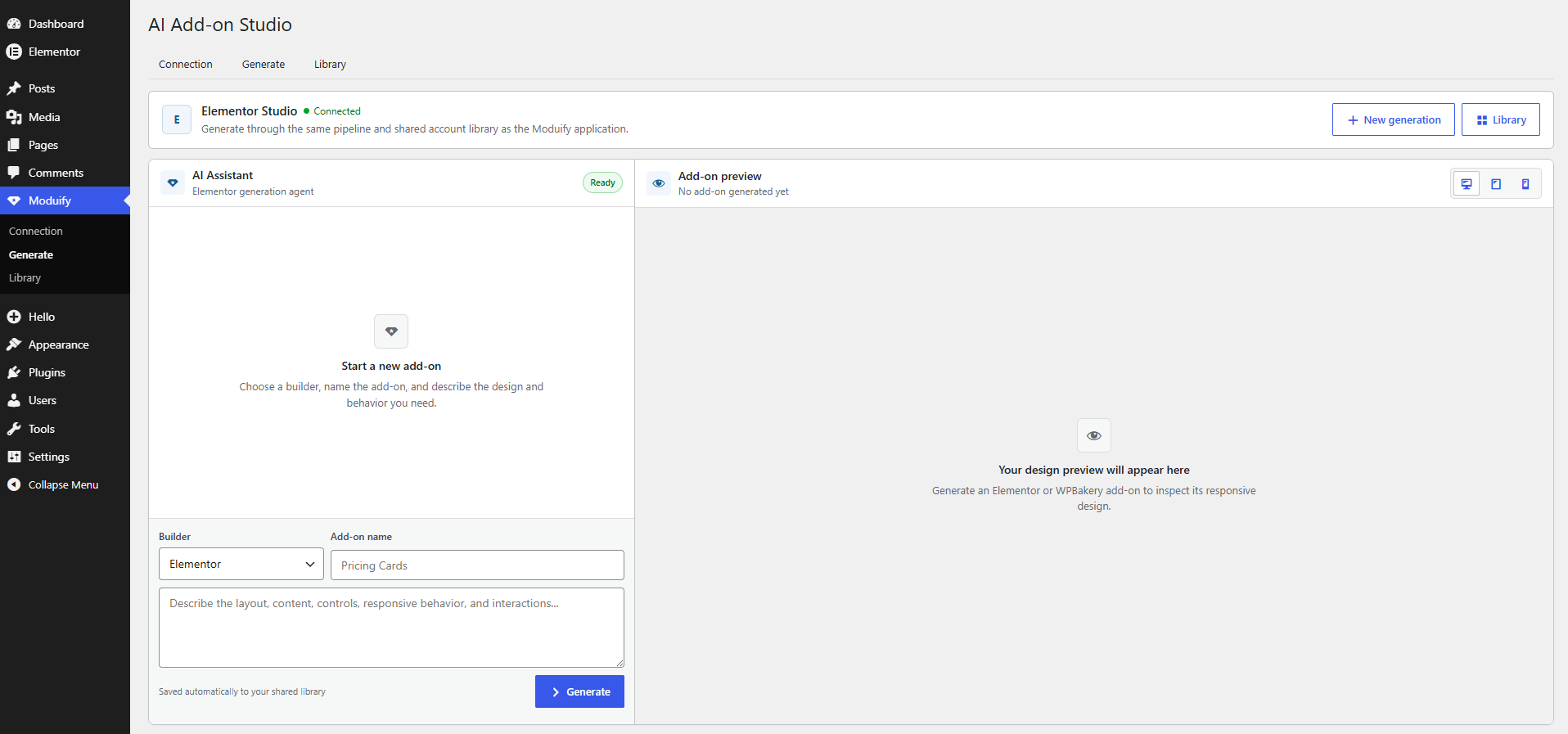
- Generates Elementor widgets and WPBakery add-ons from a component name and detailed prompt.
- Recovers long-running jobs after an admin-page refresh or temporary status failure.
- Displays a responsive static design preview after generation.
- Saves connector-generated items automatically to the connected account’s shared Moduify library.
- Shows whether an item passed validation or was saved with findings that need attention.
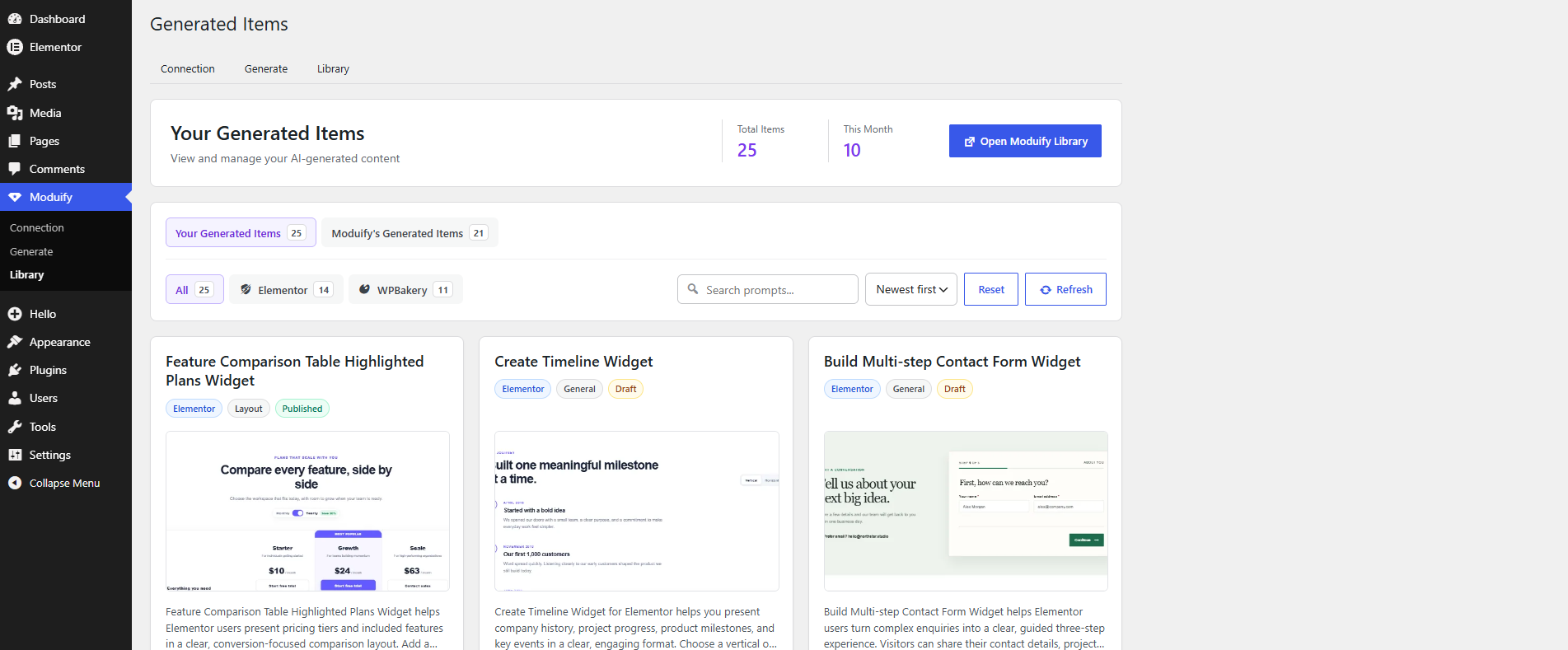
- Lets administrators browse account items and Moduify-published examples.
- Provides an in-plugin Tutorials page.
What the plugin does not do
This connector does not install, activate, update, or execute generated PHP on your WordPress site. It also does not add a frontend shortcode, block, widget, or tracking script. Generated add-ons are reviewed, edited, downloaded, and installed separately through the Moduify web application.
Supported builders
- Elementor
- WPBakery Page Builder
You can generate for either builder even if that page builder is not active on the connector site. To install and use a downloaded add-on later, the matching page builder must be installed and active on the destination site.
Recommended prompt details
For better results, include the layout, sample content, editable controls, responsive behavior, colors, spacing, typography, images or icons, and interactions. Always select the builder used by the destination site.
How to use the connector
1. Browse public examples (no connection required)
After activation, open Moduify > Library. The Public Examples collection loads explicitly published Elementor and WPBakery catalog items from Moduify. It does not expose another user’s private items, generation prompts, or installable source code.
2. Create the connection
- Sign in at https://moduify.com/.
- Open https://moduify.com/dashboard?tab=wordpress-connector or select WordPress Connector in the dashboard.
- Name the WordPress site, create a connector key, and copy it. The full key may be shown only once, so keep the page open until WordPress verifies it.
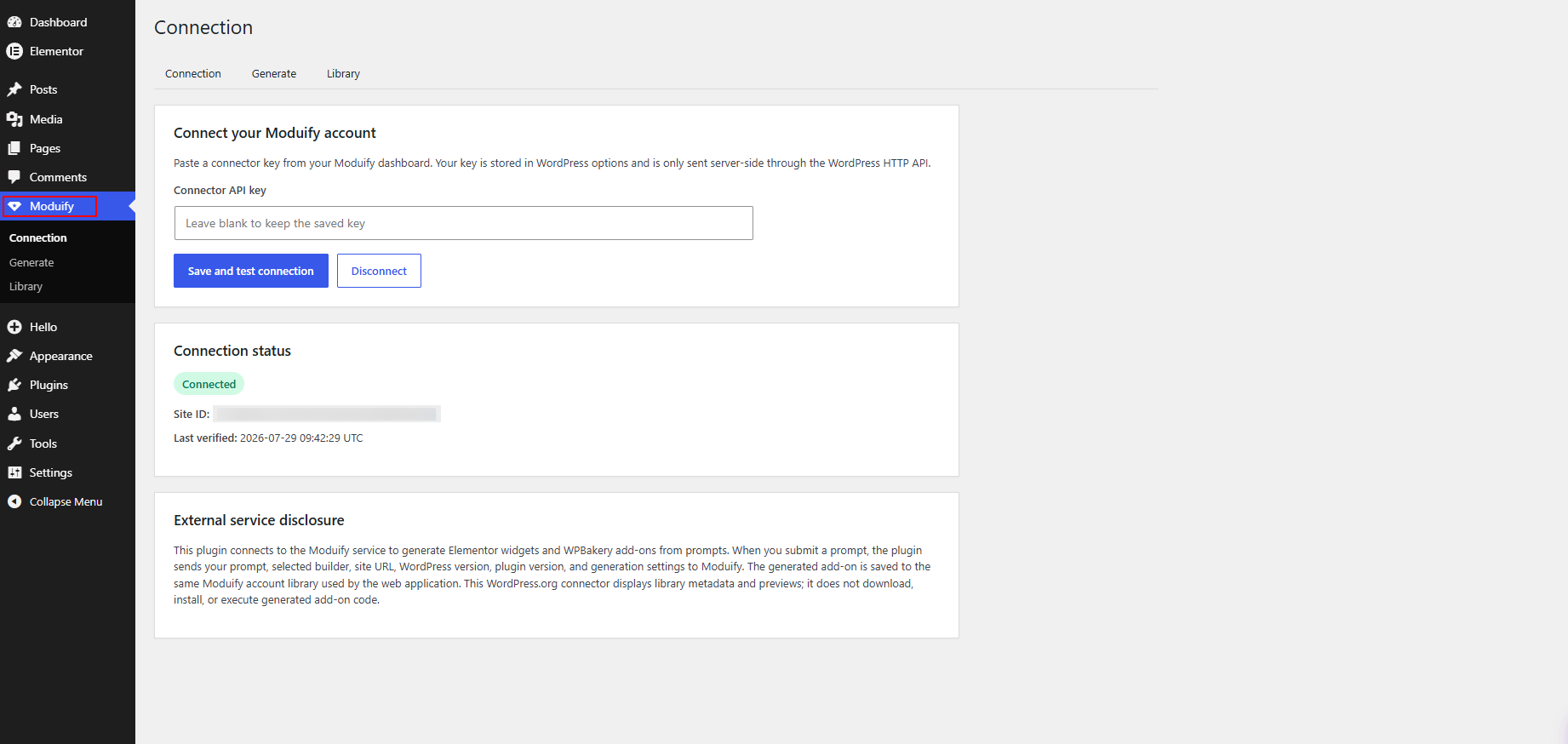
- In WordPress, open Moduify > Connection.
- Paste the key that begins with
mfy_live_and select “Save and test connection.” This is a connector key, not a WordPress password, Moduify password, or AI-provider key. - Confirm that the page shows Connected, a Site ID, and the correct Moduify account.
The Connection page also links directly to the connector-key dashboard and the public setup guide at https://moduify.com/wordpress-api.
3. Generate an add-on
- Open Moduify > Generate.
- Choose Elementor or WPBakery.
- Enter a clear add-on name.
- Describe the design, content, settings, responsive behavior, and interactions you need.
- Select Generate and keep the admin page open while the job starts.
The connector submits the job once, checks its status, and saves the result to the shared library. If the page reloads, status checks resume for the active job.
4. Review the result
The Generate page shows the static preview returned for the completed item. The Library page shows the item name, builder, source, preview, date, and validation state.
- “Passed” means the automated generation checks completed successfully.
- “Needs attention” means the item was saved, but one or more findings should be reviewed before installation.
- A missing preview does not delete the generated item; open the Moduify library to review its source and validation details.
5. Edit, download, and install
Open Moduify > Library and select “Open Moduify Library.” Sign in, review or edit the item, run the available checks, and download it. A site administrator then installs it manually on a site with the matching builder.
6. Disconnect a site
Open Moduify > Connection and select Disconnect. You can also revoke the connector key from the Moduify dashboard. Disconnecting removes the saved connection details from WordPress; it does not delete items already stored in the Moduify library.
External service
This plugin connects to Moduify because the public example catalog, generation, validation, private library storage, and downloads are provided by that service. A Moduify account and connector key are required for generation and private account items, but not for browsing public examples.
When an administrator opens Moduify > Library on a disconnected site, the plugin sends a server-side GET request to Moduify. No connector key, site URL, prompt, or private account identifier is included. Moduify returns only explicitly published catalog metadata and static preview URLs. The administrator’s browser requests those preview images with a no-referrer policy; Moduify or the image host can still receive ordinary request information such as an IP address and browser details.
When a connection is tested, the plugin sends the site URL, site name, WordPress version, PHP version, plugin version, and connector key to authenticate the key and register the site.
For generation, the plugin sends the prompt, builder, component name, site ID, and idempotency key. Moduify creates and validates the job and saves it to the connected account.
While a job is active, the plugin sends its ID to retrieve status. It renders only the supplied static preview in an isolated admin area, captures a 590 by 300 pixel JPEG, and sends the image and item ID to Moduify for the shared thumbnail.
For a connected account, the Library request includes the connector key and returns that account’s item metadata together with published Moduify examples. Public examples do not expose their original generation prompt or installable source. Generated PHP and preview JavaScript are not returned to or executed by this connector. Downloads require a separate signed-in action on Moduify.
The Tutorials page embeds YouTube through youtube-nocookie.com. YouTube may receive the visitor’s IP address, browser information, and request metadata when that page opens. Other connector pages make no YouTube request.
Moduify Terms of Service: https://moduify.com/terms
Moduify Privacy Policy: https://moduify.com/privacy
Moduify Pricing: https://moduify.com/pricing
Google Privacy Policy: https://policies.google.com/privacy
Video Tutorial
Skermôfbyldings
Ynstallaasje
- In WordPress, open Plugins > Add New Plugin and upload the plugin ZIP, or upload the
moduify-ai-connectordirectory to/wp-content/plugins/. - Activate Moduify AI Connector.
- Open Moduify > Library to browse public examples immediately.
- To generate, open Moduify > Connection and follow the on-screen setup steps.
- Create a key at https://moduify.com/dashboard?tab=wordpress-connector, paste it into WordPress, and select “Save and test connection.”
- Open Moduify > Generate to create your first Elementor or WPBakery add-on.
Only users with the manage_options capability can connect an account, submit generation jobs, browse the connector library, or save preview images.
FAQ
-
Where do I get a connector API key?
-
Sign in to Moduify, open https://moduify.com/dashboard?tab=wordpress-connector, create a key, then paste it into Moduify > Connection. Do not share it or place it in frontend code. A detailed guide is available at https://moduify.com/wordpress-api.
-
Can I use the Library before connecting an account?
-
Yes. Moduify > Library displays explicitly published examples without a connector key. Connecting adds your private saved items and enables generation. Anonymous catalog responses do not include private items, original public-item prompts, or installable code.
-
Is my Moduify password stored in WordPress?
-
No. The connector key is stored in WordPress options and sent only through the server-side WordPress HTTP API. Your Moduify password is never requested or stored.
-
Does the plugin install or run generated code?
-
No. It submits jobs and displays metadata and static previews; it does not retrieve PHP, execute preview JavaScript, write plugin files, or activate add-ons.
-
Why was my item saved with validation findings?
-
Open the item in the web library, inspect the findings, edit the source, and run the checks again before downloading or installing it.
-
What should I do if generation takes a long time or returns a gateway error?
-
The connector retries temporary status failures and resumes after a reload. For a 429, 502, 503, or 504, wait briefly instead of repeatedly starting jobs. Also check the library because the server-side job may still finish.
-
A render or image-host failure can prevent the preview without deleting the item. Open the library to review the result and validation details.
-
Do I need Elementor or WPBakery installed on this site?
-
Not to connect the account or start a generation. The matching builder is required on the site where you eventually install and use the downloaded add-on.
-
Does this plugin add a shortcode, block, or frontend CSS?
-
No. The connector is admin-only. Its scripts and styles load only on Moduify admin pages and are scoped to the connector interface.
-
How do I download an add-on?
-
Open Moduify > Library, select “Open Moduify Library,” sign in, choose the saved item, review it, and download it from the Moduify website.
Resinsjes
D’r binne gjin resinsjes foar dizze plugin.
Meiwurkers & amp; Untwikkelders
“Moduify AI Connector” is iepen boarne software. De folgjende minsken hawwe bydroegen oan dizze plugin.
Meiwurkers

Oersette “Moduify AI Connector” yn jo taal.
Ynteressearre yn ûntwikkeling?
Blêdzje troch de koade , besjoch de SVN-repository , of abonnearje op it ûntwikkelingslogboek troch RSS .
Feroaringslog
1.0.2
- Added a public, read-only Moduify example catalog that works before account connection.
- Kept private items, prompts, and installable source restricted to verified connector accounts.
- Added a guided connection workflow with direct dashboard and setup-guide links.
- Expanded external-service and privacy disclosures for public catalog and connected requests.
- Added a direct Library link to the Plugins screen.
1.0.1
- Expanded setup, generation, validation, library, download, privacy, and troubleshooting guidance.
- Added direct Connection and Tutorials links to the Plugins screen.
- Added installed-version tracking for reliable future upgrades and cleanup on uninstall.
- Updated the compatibility declaration for WordPress 7.1.
1.0.0
- First production-ready release of the Moduify AI Connector.
- Added isolated full-page admin interfaces, shared library integration, responsive static previews, and Elementor and WPBakery generation workflows.